Starlink
- 4.7
- Rating
- 10.00M
- Installs
- Free
- Price

 Analysis by App-foxy
I installed Starlink expecting a practical companion for managing satellite internet, and that is exactly where it makes sense. This free Tools app from Space Exploration Technologies Corp. is built around the moments when a Starlink owner needs to understand, configure, or check the service rather than simply browse the web. Its value is less about entertainment and more about turning an unfamiliar connection system into something I can inspect from my phone.
That focus also shapes how I judge it. A service-management app needs to feel trustworthy because it sits close to my home network, account, equipment, and service status. I am not looking for a crowded dashboard or unnecessary extras. I want clear choices, useful diagnostics, sensible account handling, and enough explanation to know what I am changing. In my experience, Starlink is strongest when I use it as a control panel and troubleshooting companion, not as a replacement for the phone’s general network settings.
What the app is really for
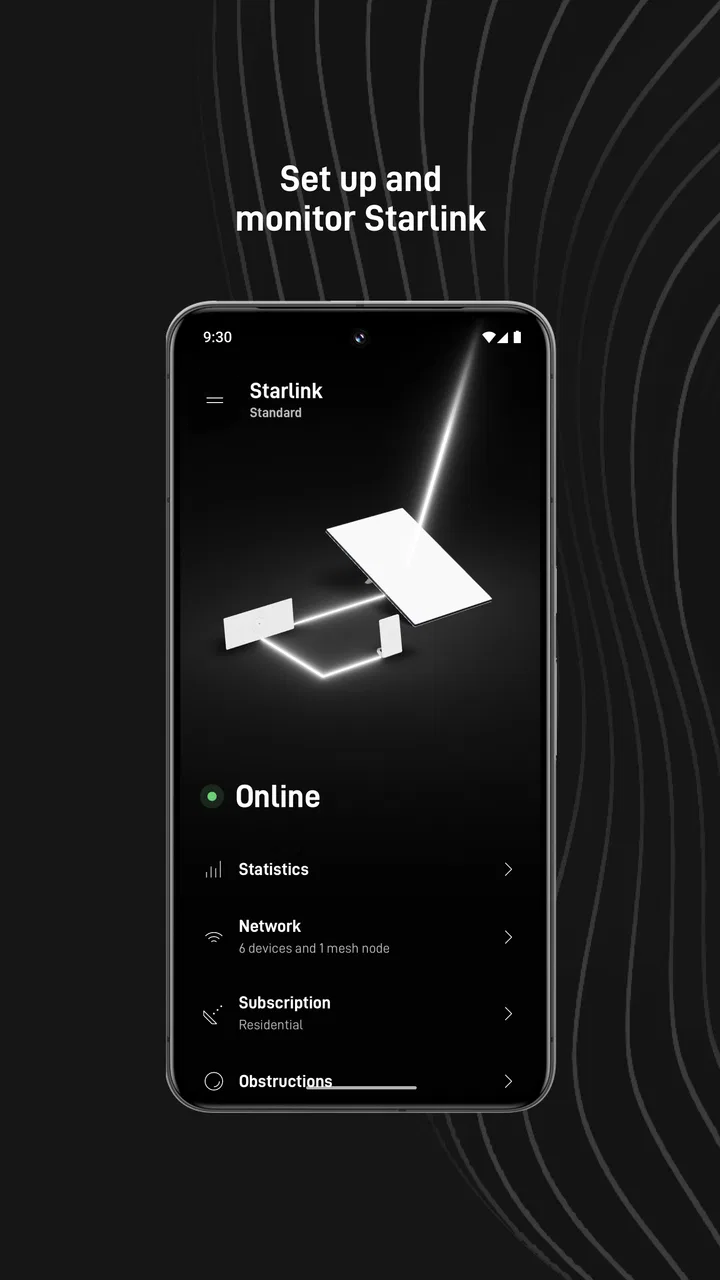
The basic purpose is straightforward: it helps set up and monitor a Starlink service. That sounds simple, but the distinction matters. A normal internet provider may give me a router application, while Starlink’s service involves equipment whose position, visibility, and connection condition can affect the experience. The app gives that arrangement a dedicated place on my phone, so I do not have to guess whether a problem comes from my device, the local network, the hardware, or the wider service.
You May Also Like

 Blood Strike: 2.5 Anniversary
Blood Strike’s Loadouts Turn Every Drop Into a Tactical Gamble
A close look at Blood Strike’s custom loadouts: how fast access to signature weapons reshapes its battle royale rhythm, rewards preparation, and narrows the gap between fights.

 Pandora - Music & Podcasts
Pandora’s Music Is Easy to Start, but Harder to Recover
Pandora’s strength is its low-effort path from a seed to a station. Its weak spot is how much confidence it asks you to place in connection, setup, and quiet recovery.

 8 Ball Pool
 Is Built on Rivalries, Rematches, and Routine
A close look at the rivalries, rematches, shared routines, and unanswered safety questions that turn a quick pool match into a persistent mobile community.

 Samsung Music
’s Quiet Strength Is Playing What You Already Own
Its reach comes less from spectacle than from dependable access to a personal library. That simplicity is both the app’s strongest retention engine and its ceiling.

 AccuWeather: Weather Radar
AccuWeather Review: A Quick, Clear Forecast for Everyday Decisions
For everyday plans, the best forecast is the one you can understand quickly. AccuWeather makes rain timing, radar, and local conditions easy to act on, with a few trade-offs.

 Hill Climb Racing
Why Hill Climb Racing Still Turns Crashes Into One More Run
A tiny car, a bumpy hill and one more upgrade: Hill Climb Racing keeps resurfacing because its simple chaos makes every near-miss feel personal.
More From Our News Desk



I found the app most useful during the first setup and whenever the connection behaved differently from usual. Instead of immediately restarting everything, I could begin by checking the service from the same application used to manage it. That creates a more sensible troubleshooting order: inspect what the app reports, consider the physical environment, then make a change if needed. It is a small habit, but it can prevent random resets and unnecessary visits to support pages.
Starlink is listed as an app in the Tools category, and its audience is naturally narrower than that of a general Wi-Fi utility. If I do not use Starlink service, there is little reason to install it. For an owner, however, the dedicated design is more useful than a generic network scanner because it is connected to the specific service I am trying to manage.
The app is free, carries an Everyone age rating, and supports Android starting with version 7.0. Its current version is 2026.04.0, which makes compatibility worth checking before installation on an older phone. The free price removes an obvious barrier, but it does not make the app universally useful: the real requirement is having a Starlink service to manage.
Trust begins with a narrow purpose
One reason I am more comfortable with a service app like this is that its purpose is easy to understand. I can connect its main job—setup and monitoring—with the provider responsible for the service. The developer is Space Exploration Technologies Corp., so the app is not an unrelated third-party dashboard trying to imitate the official experience. That does not mean I should stop paying attention to account security or data choices, but it gives me a clear place to start.
The public response is also encouraging: Starlink has a 4.8 average from around 248 thousand ratings, with more than 10 million installs. Those figures do not prove that every user has the same experience, and they cannot tell me how the app behaves in every home setup. Still, they suggest that the application is established rather than experimental. I treat that as useful context, not as a substitute for checking the screens and controls myself.
The app has been available since October 23, 2020, so it is not a brand-new utility that still needs to establish its basic workflow. At the same time, a mature app can accumulate settings and account paths that deserve careful attention. I prefer to review it by asking a practical question: does each visible action help me manage Starlink, and does the app make the consequences of that action understandable?
Account handling deserves deliberate attention
Because this is tied to a service account, I would not treat it like a disposable flashlight or calculator. I use a strong, unique password for the account and avoid signing in casually on a shared phone. I also take a moment to read any confirmation screen before changing service or equipment settings. That advice is not a criticism of the app; it is the normal discipline I expect whenever an application can expose account information or affect a paid household service.
The most reassuring experience is when the app keeps account-related actions visible and intentional. I want to know whether I am merely viewing a status, changing a local setting, or starting a process that affects the service. If a screen asks me to confirm, I do not rush through it. A clear confirmation is valuable because it preserves my control, especially when I am troubleshooting under pressure.
I also prefer using the official app rather than relying on unofficial tools that promise extra monitoring. A third-party utility may offer attractive graphs or shortcuts, but it can introduce another account relationship or another place where sensitive information passes through. For ordinary Starlink management, the official route is the more sensible starting point.
Controls, diagnostics, and everyday use
My normal workflow starts before there is a serious problem. After opening the app, I use it to understand the current condition of the service and to orient myself around the available controls. This is especially helpful for someone who is not comfortable interpreting networking terminology. The app’s role is not to make me a network engineer; it is to give me a service-specific view that is easier to act on than a collection of unrelated phone settings.
A realistic example is a work-from-home afternoon when a video call becomes unstable. My first instinct might be to blame the laptop, but I would open Starlink on my phone and check the service before changing the computer. If the app shows a broader connection issue, I know the laptop is probably not the right place to start. If the service looks normal, I can then examine local Wi-Fi placement, the laptop, or the meeting application. That sequence saves time because it separates provider-level symptoms from device-level symptoms.
Another useful scenario is preparing for a change around the home. If I move equipment, alter its surroundings, or make a physical adjustment, I can use the app afterward to monitor whether the service returns to a stable condition. I would not rely on a single glance. I would check again after normal use, because a connection can appear fine immediately and behave differently later. The app is most useful as part of that before-and-after routine.
Three practical habits that improve the experience
First, I keep the app available even when the service is working well. Troubleshooting tools are hardest to find when I am already offline or frustrated. Having it installed means I can open it quickly from a phone that is still connected through mobile data or another network, depending on the situation. I do not wait for a failure before learning where the important status information lives.
Second, I record what changed before I start changing more things. If I moved equipment, altered a setting, or restarted something, I make a mental note of the order. Then I use the app to observe the result. This is more reliable than making several changes at once and later wondering which one helped. The app becomes a diagnostic reference rather than a button I press repeatedly without a plan.
Third, I separate a service status check from a Wi-Fi coverage test. A Starlink connection and the wireless signal inside my home are related but not identical. The app can help me understand the Starlink side, while the phone’s position, walls, device behavior, and local network arrangement can affect what I experience in a room. When the app looks healthy but one corner of the house performs poorly, I do not immediately conclude that the satellite service is failing.
These habits are more valuable than simply opening the application after every interruption. They reduce guesswork and help me decide whether I need to inspect the physical setup, the home network, the account, or support. That is the kind of practical advantage a dedicated service app can offer over a generic internet speed test.
Where it compares well with usual alternatives
A speed-test app can tell me how a connection performs at one moment, but it usually cannot explain the relationship between my Starlink equipment and the service account. A generic router app may show local devices or wireless settings, yet it may not provide the same service-specific context. A browser-based support page can contain useful instructions, but it is less convenient when I am standing near the equipment and trying to check something quickly.
Starlink sits between those options. It is more relevant to the provider’s own service than a generic network utility, and more immediate than searching through support articles from scratch. I would still keep a speed test available for a separate performance check, and I would still use the phone’s network settings when the issue clearly concerns one device. The app is not a universal replacement; it is the first stop for questions about the Starlink service itself.
The trade-off is that the app’s usefulness depends heavily on the situation. If I want detailed control over every aspect of a home network, a dedicated networking application or advanced router interface may be better. If I only need to know whether my phone has internet access, Starlink may feel excessive. Its advantage appears when I need provider-specific visibility and management in one place.
Data-sensitive moments and user choice
My most careful moments with this app are the ones involving sign-in, service information, equipment details, or changes that affect how the connection operates. I do not assume that a convenient dashboard should expose everything automatically. I look for visible explanations, review prompts, and confirmation steps, especially before sharing information or modifying account-related settings.
That approach also affects how I use notifications and phone access. I enable only the alerts that help me notice meaningful service conditions, rather than allowing every possible interruption. On Android, I review the application’s permission page after installation and again after major updates. I do not grant a permission simply because an app requests it; I consider whether the request makes sense for the task I am trying to perform. If a feature does not work without a permission, I decide whether that feature is worth the access.
I also keep the operating system and the app updated through the normal official channel. Updates can change layouts, controls, or account flows, so I glance at the first launch after an update instead of assuming every button is in the same place. This is particularly important for a service-management app: a familiar screen may have moved, and an unfamiliar prompt deserves a careful read rather than an automatic tap.
When I use Starlink on a family phone or a device shared with guests, I think about account exposure. I sign out when appropriate, avoid saving credentials on a device that other people use, and keep the phone itself protected. The app can provide service controls, but it cannot replace basic device security. Anyone who can unlock the phone and access an active account may have more visibility or control than I intended.
What I would want before making a change
Before changing a setting, I want three things to be clear: what the action affects, whether it can be reversed, and whether the service might be interrupted. If the app communicates those points well, I feel comfortable exploring it. If I am not sure, I stop and look for the relevant explanation or support guidance instead of experimenting during an important call.
This is also why I do not judge the app only by how many controls it presents. More controls are not automatically better. A smaller set of understandable choices can be safer than a technically impressive dashboard filled with options I cannot interpret. For a household user, clarity is a feature in its own right.
There is a practical privacy trade-off here. A service-monitoring app needs enough information to show me what is happening, but I should not expect the same privacy profile as an offline utility that never touches an account. I use the app because the service relationship is the point, and I balance that convenience with careful sign-in habits, permission review, and attention to the choices shown on screen.
Who should use it, and who should skip it
I recommend Starlink to people who already use Starlink service and want a direct way to set it up and keep an eye on it. It is particularly useful for households where more than one person may need to understand the connection, for remote workers who want a quick first check before troubleshooting a computer, and for owners who prefer a guided service-specific tool over scattered browser instructions.
I would also suggest it to less technical users who feel overwhelmed by router dashboards. The app does not make every networking problem disappear, but it gives the service a clearer home on the phone. That can make conversations with support more productive because I can describe what I checked and what changed rather than saying only that “the internet is slow.”
I would skip it if I do not have Starlink service, since its focused purpose offers little value outside that ecosystem. I would also avoid depending on it as my only diagnostic tool if I manage a complex home network and need detailed device-level controls. In that case, I would use Starlink for the provider-specific view and keep a separate router or network utility for local configuration.
People who dislike account-based service apps should think carefully before installing it. The convenience comes from having service information and controls in one place, but that also means I need to treat the account seriously. Someone seeking a completely offline tool will not find the right kind of experience here.
Questions I considered before recommending it
Can it replace a general speed-test application? No, not in the way I use it. A speed test answers a performance question at a particular moment, while Starlink helps me examine and manage the service. I may use both, but they solve different problems.
Can it fix every outage? I would not expect that. The app can help me identify the starting point for troubleshooting, but it cannot remove every physical, equipment, account, or service-side cause. Its real benefit is reducing blind trial and error, not guaranteeing an instant repair.
Is it suitable for a child to use alone? The age rating is Everyone, but I would still be cautious with account controls. An age classification is not the same as permission to change household service settings. I would let a child view basic information only under the same supervision I would use for any account-connected utility.
Should I install it on every household phone? Probably not. I would put it on the phone of the person most likely to manage the service, then add it elsewhere only when there is a clear reason. Fewer active account sessions can make household access easier to understand and review.
What should I do when the app and my device disagree? I would compare conditions before drawing a conclusion. I would check whether the issue affects one device or several, whether the phone itself has a stable connection, and whether anything changed physically or locally. The app is an important signal, but good troubleshooting still requires looking at the whole setup.
My cautious verdict after using it
Starlink succeeds because it takes a specialized internet service and gives it a dedicated mobile control point. I like that its purpose is easy to understand, its developer is the service provider, and its large installed base indicates that it is a well-established part of the Starlink experience. The free price and Everyone rating also make it easy for the intended household user to try, provided the phone meets the Android requirement.
My recommendation is not based on treating the app as a magic repair button. Its strongest quality is practical visibility: I can begin with the service itself before blaming a laptop, a room, or a router setting. Used with a simple troubleshooting routine, it helps me make calmer decisions and avoid changing several things at once.
The limitations are just as important. It is not a universal network-management suite, not a substitute for every support resource, and not a reason to ignore account security or permission choices. I would keep a separate tool for local Wi-Fi questions, read confirmations carefully, and review access on the phone. Those habits preserve the control that the app is meant to provide.
For a Starlink owner, I consider it a sensible installation and a useful first stop when setting up or checking the service. For everyone else, it is too specialized to justify space on the phone. My final view is simple: use it when you want provider-specific control, but keep your own judgment in charge of every account, permission, and configuration decision.
FAQs for Starlink
01What is Starlink and how does it work?
Starlink is a satellite internet constellation developed by SpaceX to provide high-speed internet access across the globe, particularly in remote areas. It works by connecting a user terminal to a network of satellites orbiting the Earth, allowing users to access the internet without reliance on traditional ground-based infrastructure.
02What are the main features of the Starlink app?
The Starlink app allows users to set up and manage their Starlink internet connection. Key features include checking network status, viewing real-time performance data, setting up the user terminal, and troubleshooting connectivity issues. The app also provides detailed information on satellite positions and uptime.
03What are the advantages of using Starlink internet service?
Starlink offers several advantages, including high-speed internet access in remote and rural areas where traditional broadband services are unavailable. It provides low latency, which is ideal for activities such as video conferencing and online gaming. Additionally, the service is easy to set up and provides consistent performance.
04Are there any limitations or drawbacks to using Starlink?
While Starlink offers many benefits, there are some limitations. The service can be affected by weather conditions, leading to occasional disruptions. The initial setup cost can be high due to the required hardware. Additionally, the service is currently limited to specific regions as SpaceX continues to expand its satellite network.
05How do I download and install the Starlink app?
The Starlink app is available for download on both Android and iOS devices. Users can find it on the Google Play Store for Android or the Apple App Store for iOS. Once downloaded, follow the on-screen instructions to install the app and create an account to start managing your Starlink internet service.
Pros
- Fast internet speeds in remote areas.
- Simple setup with clear instructions.
- Consistent connectivity and low latency.
- Portable for travel and relocation.
- High data cap compared to competitors.
Cons
- Expensive initial hardware cost.
- Limited availability in urban areas.
- Weather can affect signal quality.
- Customer support response times vary.
- Requires clear sky for optimal performance.

Starlink
Gallery